
Microsoft 365 Copilot
Microsoft CorporationProductivity
4.452.24K Reviews
- Version
- 16.0.20708.20014
- Installs
- 1.00B
- Age Rating
- Teen
Screenshots
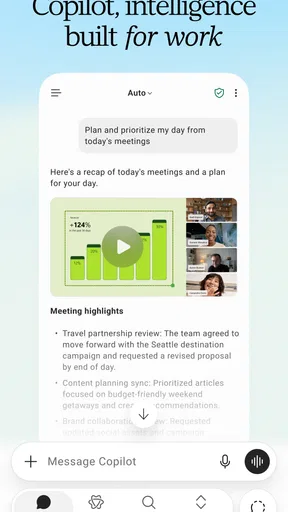
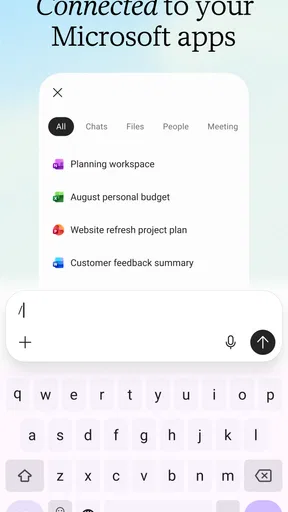
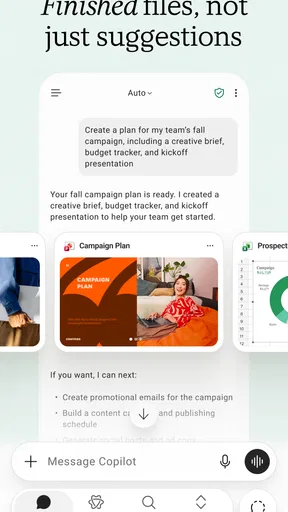
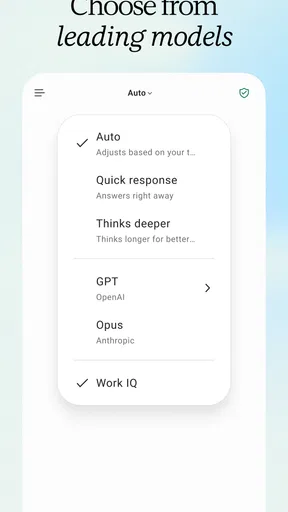

Our Review of Microsoft 365 Copilot
 Analysis by Appyee
My first impression of Microsoft 365 Copilot was that it could make the familiar Microsoft workflow feel less like a collection of chores and more like one connected place to get things done. That promise is appealing in the first few days, when every new tool seems to offer a shortcut. What matters more is whether I would still open it once the novelty wears off—and whether it earns that habit without adding another layer to maintain.
A promising first week, with a practical caveat
The app is free to install, made by Microsoft Corporation, and sits in the productivity category. Its audience is broad: it has over a billion installs and an average rating of 4.5 from around nine million ratings. That scale suggests it is familiar to many people, but it does not guarantee the same value for everyone. Copilot makes most sense when Microsoft 365 is already part of your working day; if your documents, plans, and communication live elsewhere, the appeal may be thinner.
I would treat the first week as a test of fit rather than a promise of instant transformation. Pick one recurring task you already do in a Microsoft-centered routine, then see whether the app makes that task simpler. If you try to move your whole work life into a new pattern at once, it is harder to tell what is genuinely useful and what is just the excitement of trying something different.
Where it can earn a place in a routine
The best ongoing value of a productivity assistant is not a dramatic one-time save; it is reducing small bits of friction often enough to matter. A useful way to judge Copilot is to notice whether it helps you return to the next action with less fuss. For example, after a meeting-heavy morning, I would want to spend less time working out what needs attention and more time doing the actual follow-up. That is a better test than simply opening the app to explore its features.
For someone who already relies on Microsoft 365, keeping a single familiar environment can be more convenient than adding a separate tool for every task. But convenience depends on how you work. If you mainly need a basic checklist or a simple calendar, a lightweight alternative may be faster and easier to understand. Copilot is more compelling when it supports a broader routine, not when you are trying to solve one small problem with a heavyweight setup.
Keep the habit light
I would avoid turning any assistant into another inbox that needs constant checking. Decide when you will use it—perhaps at the start of a work session or while wrapping up—and keep the routine narrow enough to repeat. A quick review of priorities can be helpful; repeatedly switching between tools to see whether something new has appeared can undo that benefit.
There is also a real trade-off in relying on an assistant: it can help organize work, but it does not take responsibility for your decisions. I would still check important details, deadlines, and meeting arrangements rather than assuming a suggested next step is automatically right. That small habit of verification is especially worthwhile when other people are depending on the result.
What’s the Buzz About?
You might be wondering, "What exactly is Microsoft 365 Copilot?" Well, think of it as your digital assistant, but on steroids. It's designed to seamlessly integrate with your existing Microsoft 365 suite, helping you to maximize productivity. Gone are the days of feeling overwhelmed by emails, meetings, and deadlines. Copilot aims to streamline your workflow, making everything feel a bit more manageable.
From the moment I started using it, I noticed how intuitive the interface is. It's like Microsoft peeked into my brain and figured out all the little things that slow me down on a daily basis. The integration is smooth, and it feels like an extension of the apps you already use, rather than a separate entity.
Features That Stand Out
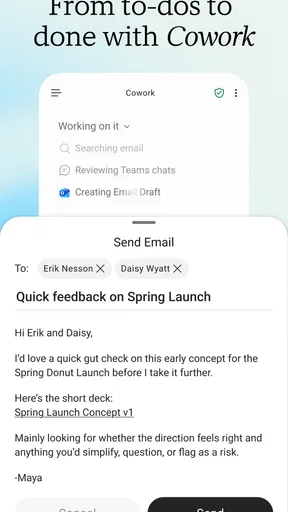
One feature that I absolutely love is the personalized task manager. It’s like having a virtual PA who knows exactly what you need to focus on next. You can easily sync your tasks across devices, which is a lifesaver for someone constantly on the go. Plus, it sends gentle nudges about upcoming deadlines, so you’re never caught off guard.
Another highlight is the meeting scheduler. I used to spend a ridiculous amount of time coordinating meetings, but now, Copilot handles all of that. It suggests optimal times, checks availability, and even sends reminders. It’s like having a super-organized friend who knows everyone’s schedule by heart.
The Learning Curve
Now, I know what you might be thinking: "Is it user-friendly?" Honestly, yes. The learning curve is pretty gentle. Even if you’re not super tech-savvy, you’ll find your way around pretty quickly. There are plenty of tutorials and support options if you do get stuck, but I doubt you'll need them much. The app does a fantastic job of guiding you through its features step by step.
Useful for shared work, less so for a one-tool life
A realistic everyday case is a workday that starts with a crowded calendar, shifts into a few conversations, and ends with several small follow-ups. I would use the app to keep the planning side of that day from becoming a separate project: check the tasks that need attention, look at the next meeting, and keep reminders in view while moving between devices. The gain is not that every obligation disappears; it is that fewer details have to be held in my head at once.
This kind of workflow is particularly useful for people who coordinate with colleagues or manage several ongoing projects. It is less convincing for someone who works alone, has a short to-do list, and already remembers their appointments without effort. In that case, a basic notes app or calendar can be a better choice because it asks less of you. I would not add Copilot just because productivity apps are fashionable; I would add it when the Microsoft environment is already where work happens.
Small practices that prevent extra busywork
One non-obvious way to make an assistant useful is to give it a clear role. I would not expect it to be my task list, meeting coordinator, reminder system, and general workspace all at once from day one. Start with the part of the routine that most often slips—such as remembering a follow-up—and give that process time to become familiar before expanding it. A tool becomes easier to keep when its job is obvious.
It also helps to distinguish a reminder from a decision. A nudge can bring a deadline back to your attention, but you still need to decide whether the item is urgent, whether the plan has changed, and what deserves your time first. I find that distinction useful because it keeps automation from becoming a substitute for judgment. The assistant should reduce mental clutter, not make you feel obliged to follow every prompt.
Copilot sits between a simple organizer and the collection of separate tools many people use for documents, scheduling, and tasks. A dedicated checklist app may be cleaner for someone who wants only lists, while a basic calendar can be enough for appointment management. The Microsoft option has a stronger case when those activities belong to a larger Microsoft 365 routine and you value continuity across it. That is the key comparison: not whether it has more features in the abstract, but whether one connected workflow is more useful to you than several focused apps.
What to expect from the cost and commitment
The app itself is free, while optional in-app purchases are listed from under a dollar to just under two hundred dollars per item. I would check what a purchase actually covers before committing, especially if the free experience already handles the job you wanted it for. The sensible approach is to begin with the no-cost use, identify a specific limitation you have encountered, and only then decide whether paying would solve it. A purchase is not automatically worthwhile simply because the app is central to your routine.
It is also rated for teens, which helps set a general audience expectation, but that does not make every work or personal use case identical. If you are choosing it for a family member, a student, or a workplace routine, consider the actual tasks and the account setup involved rather than assuming the rating answers every practical question. For professional use, I would be especially careful about reviewing important content before sharing it and following the rules of the organization that owns the work.
When familiarity turns into fatigue
The main source of fatigue for me would be having one more place to monitor. Reminders are helpful when they are connected to actions I genuinely need to take; they become noise if I already manage the same obligations elsewhere. Before building a habit, decide which existing list or calendar is the one you will trust. Duplicating tasks across systems creates upkeep, and then the assistant that was meant to simplify the day becomes another thing to reconcile.
There is a second risk: expecting a broad productivity app to make a messy routine orderly by itself. If priorities are unclear or a calendar is already out of date, adding an assistant does not remove the need to clean up those basics. I would spend a little time making the information I rely on current, then judge whether Copilot helps me act on it. That is less exciting than exploring every feature, but it gives a fairer picture of whether the app has lasting value.
Some people may also prefer a more focused interface. When I only want to jot down a quick thought, a lightweight notes tool can feel more direct than opening a wider productivity environment. That is not a flaw if the broader setup is useful for other parts of the day; it is simply a reminder that one app does not need to replace every tool. Keeping a focused alternative for a narrow task can be perfectly sensible, provided it does not create duplicate work.
The Learning Curve
Now, I know what you might be thinking: "Is it user-friendly?" Honestly, yes. The learning curve is pretty gentle. Even if you’re not super tech-savvy, you’ll find your way around pretty quickly. There are plenty of tutorials and support options if you do get stuck, but I doubt you'll need them much. The app does a fantastic job of guiding you through its features step by step.
Final Thoughts
All in all, Microsoft 365 Copilot is a game-changer for anyone looking to boost productivity and manage their workload more effectively. It's like having a little helper that takes the stress out of daily tasks. If you’re already using Microsoft 365, adding Copilot into the mix is a no-brainer. Give it a try, and you might just find yourself wondering how you ever managed without it.
So, are you ready to let Copilot take the wheel and steer you towards productivity heaven? Trust me, you won’t regret it!
Privacy and Permissions
See what permissions an app requests and how it handles your data.
- Location
- approximate location (network-based), precise location (GPS and network-based)
- Phone
- read phone status and identity
- Photos/Media/Files
- read the contents of your USB storage, modify or delete the contents of your USB storage
- Storage
- read the contents of your USB storage, modify or delete the contents of your USB storage
- Camera
- take pictures and videos
- Microphone
- record audio
- Wi-Fi connection information
- view Wi-Fi connections
- Device ID & call information
- read phone status and identity
- Other
- view network connections, pair with Bluetooth devices, control flashlight, measure app storage space, full network access, change your audio settings, control Near Field Communication, run at startup, set wallpaper, draw over other apps, control vibration, prevent device from sleeping, Google Play license check
How Microsoft 365 Copilot Compares
Full ComparisonChoose Google Docs for straightforward team editing, Word for detailed document formatting, or Microsoft 365 Copilot for AI-assisted work across Microsoft apps.
| App | Developer | Rating | Price |
|---|---|---|---|
 Google Docs | Google LLC | 4.7 | Free |
 Microsoft Word: Edit Documents | Microsoft Corporation | 4.8 | Free |
 Microsoft 365 CopilotThis App | Microsoft Corporation | 4.4 | Free |
Verdict
Strengths of Microsoft 365 Copilot
- Seamlessly integrates with Office apps.
- Boosts productivity with AI assistance.
- Offers real-time collaboration features.
- Enhances document creation efficiency.
- Provides personalized task suggestions.
Limitations of Microsoft 365 Copilot
- Requires a Microsoft 365 subscription.
- Limited offline functionality.
- May have a learning curve for new users.
- AI suggestions can sometimes be inaccurate.
- Privacy concerns with data handling.
Other Releases by Microsoft Corporation
View All
Microsoft OneDrive
Productivity4.6

Microsoft OneNote: Save Notes
Productivity4.6

Link to Windows
Productivity4.0

Microsoft PowerPoint
Productivity4.8
Similar Picks in This Category
View All
Google Calendar
Google LLC4.6

Google Drive
Google LLC4.3

Google Assistant
Google LLC3.9
Microsoft OneDrive
Microsoft Corporation4.6

Samsung Calendar
Samsung Electronics Co., Ltd.4.1
Microsoft OneNote: Save Notes
Microsoft Corporation4.6
You May Also Like
View All

Frequently Asked Questions
What is Microsoft 365 Copilot and how does it work?
Microsoft 365 Copilot is an AI-powered assistant integrated into Microsoft 365 apps like Word, Excel, and Teams. It leverages advanced AI to help users create, edit, and manage documents more efficiently. By understanding context, it offers suggestions, automates repetitive tasks, and enhances productivity with real-time collaboration and insights.
Is Microsoft 365 Copilot available on all devices and platforms?
Microsoft 365 Copilot is designed to work across various devices that support Microsoft 365 apps, including Windows, macOS, Android, and iOS. However, the availability of features might vary depending on the platform and version. It's best to ensure your device and apps are updated to the latest versions for optimal performance.
How does Microsoft 365 Copilot ensure data privacy and security?
Microsoft 365 Copilot is built with strong data privacy and security measures. It adheres to Microsoft's stringent privacy standards, ensuring that personal data is protected. The AI operates within the user's Microsoft 365 environment, meaning data is not shared externally and is used solely to enhance user productivity and experience.
Can Microsoft 365 Copilot be customized to suit specific business needs?
Yes, Microsoft 365 Copilot can be customized to align with specific business needs. It can be tailored to understand company-specific terminologies and workflows, making it a flexible tool for various industries. Admins can configure settings and permissions to ensure it meets organizational requirements and enhances team productivity.
What are the subscription requirements for accessing Microsoft 365 Copilot?
Access to Microsoft 365 Copilot requires a subscription to Microsoft 365. It is typically included in enterprise-level plans, but users should check their specific plan details for availability. For individuals or smaller teams, Microsoft may offer different tiers or add-ons, so reviewing the current offerings on Microsoft's official website is recommended.
